Demo screenshots
Screenshots of the vanilla demo. The React demo uses the same layout engine and chrome.
Recorded walkthrough

A 35-second recording of the demo in use, converted to a looping animated WebP at 1280 pixels wide.
Resizing
Before: the default workspace with objects, scene, settings, and timeline.
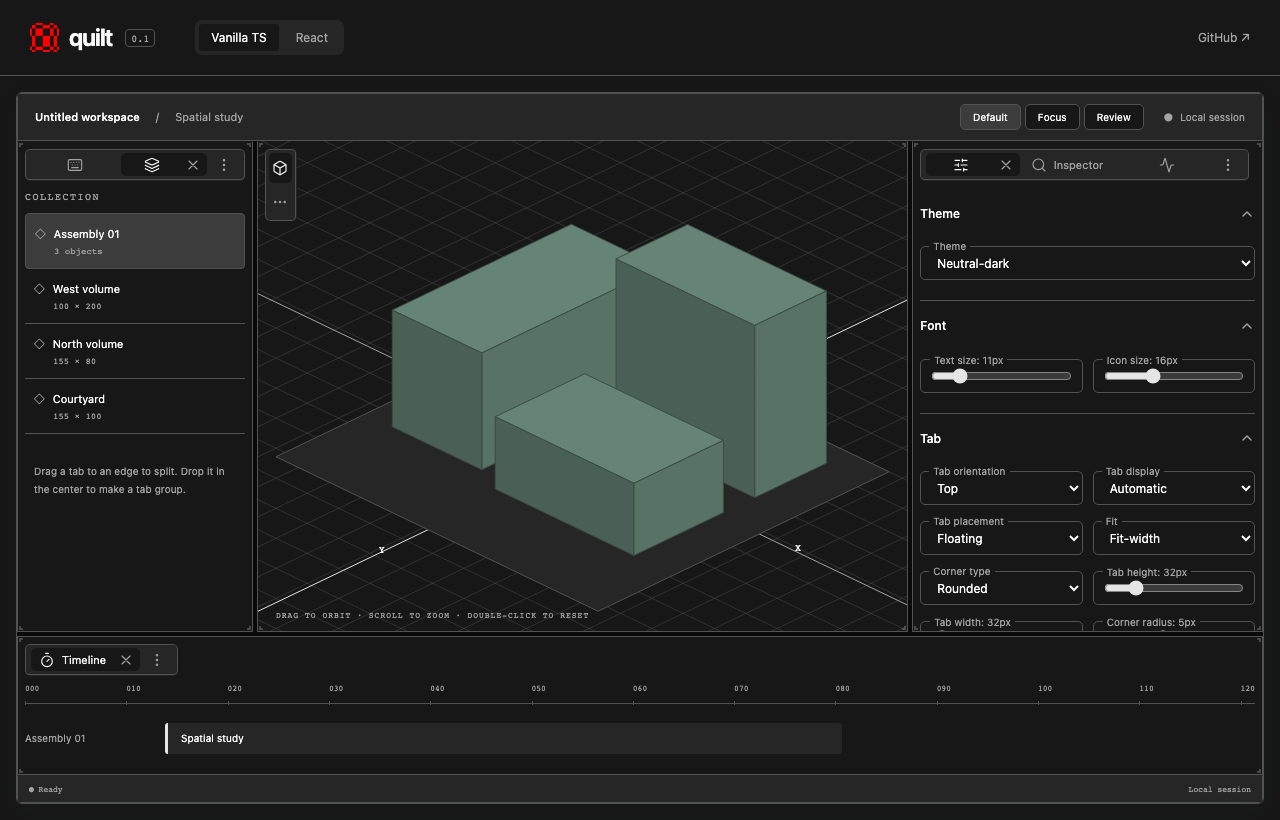
After: more room for settings and a taller timeline, using the same panes.
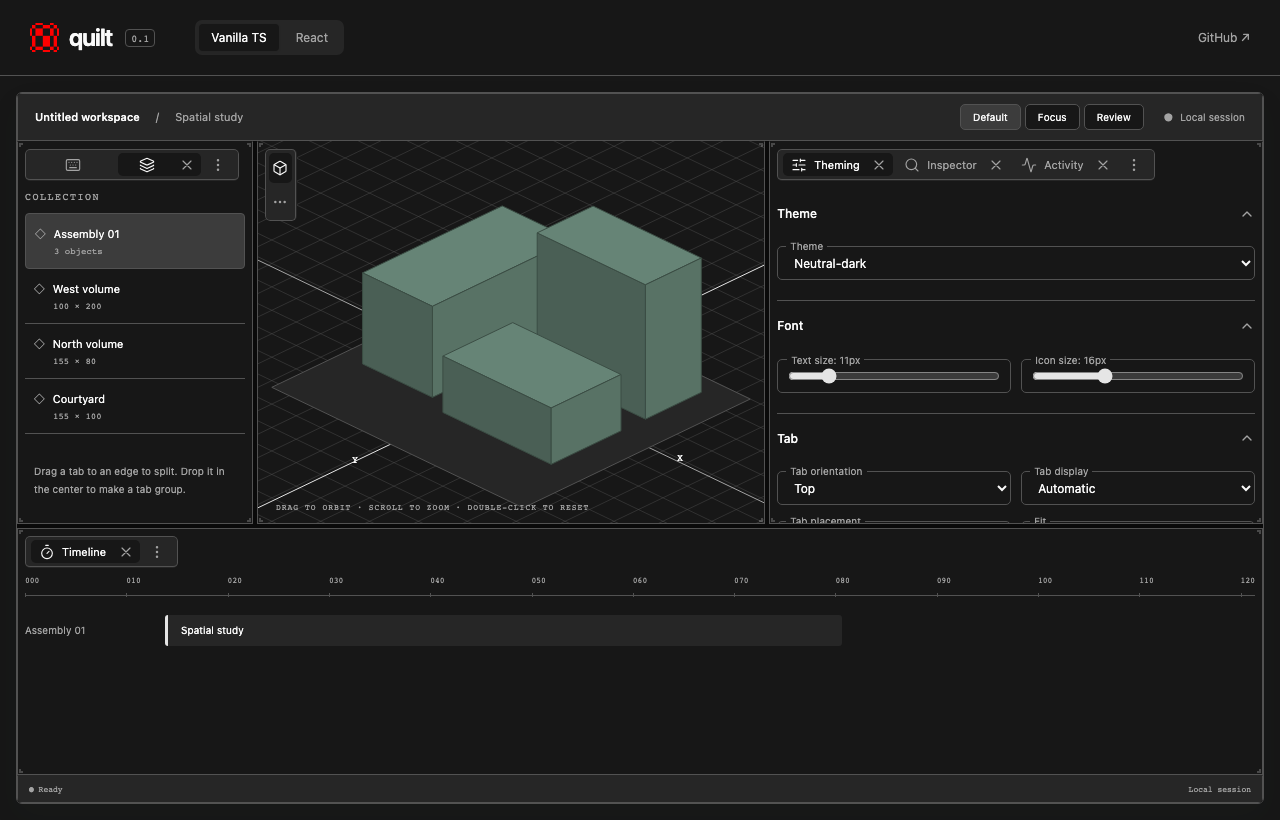
Dividers also support keyboard resizing: focus a divider and use the arrow keys; hold Shift for larger steps. See the demo's Hotkeys tab for the full interaction guide.
Light theme and vertical tabs
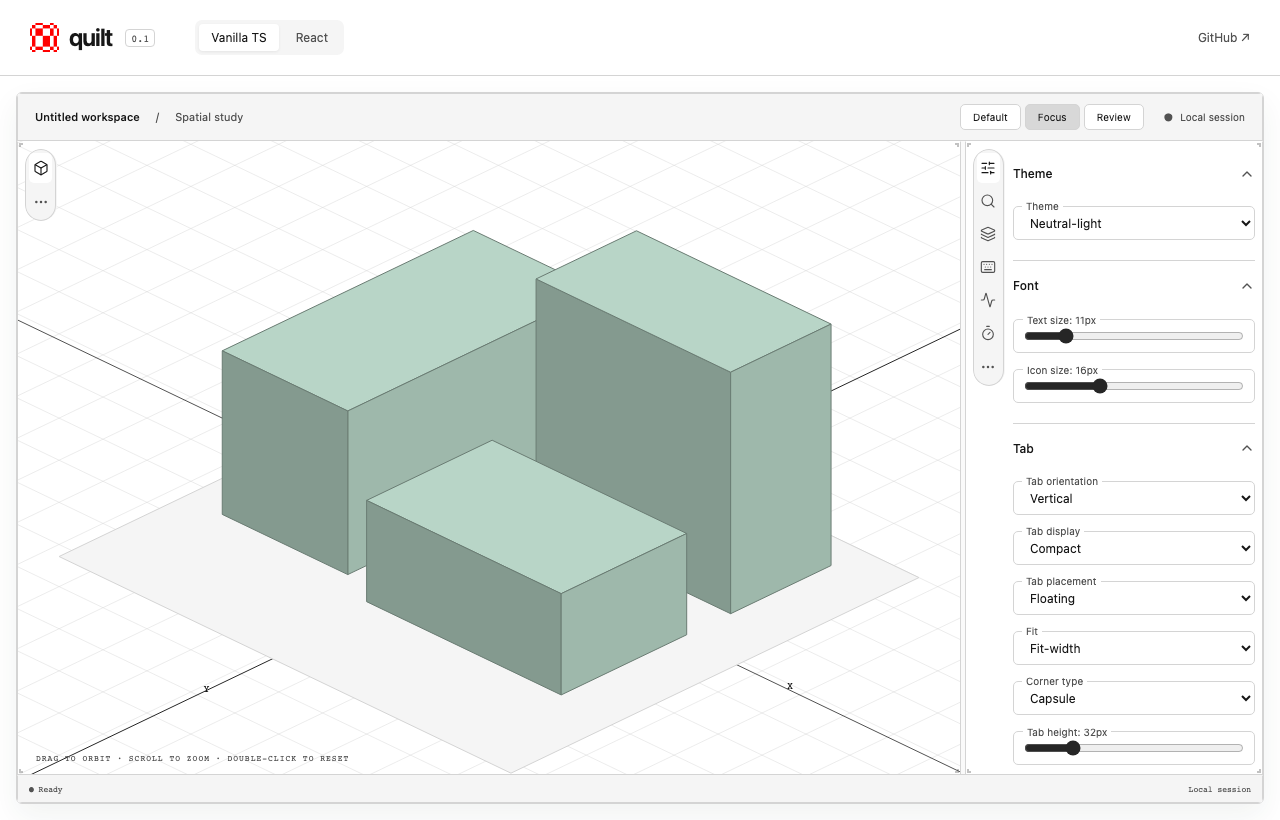
The Focus preset gives the scene most of the workspace and collects supporting panes in a sidebar. This capture uses Neutral-light, Vertical orientation, Compact display, and Floating / Fit-width / Capsule tabs.
Sage theme and review layout
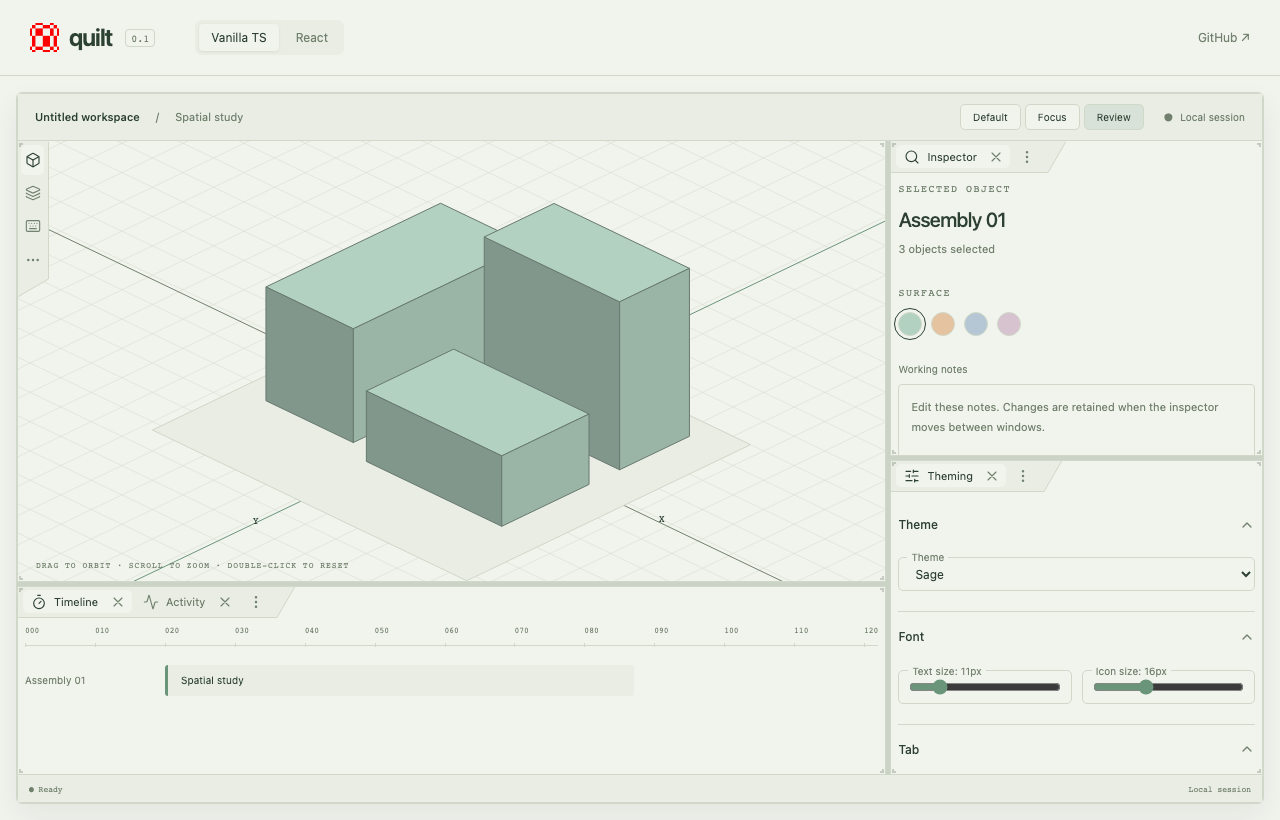
The Review preset separates the timeline, inspector, and settings. This capture uses Sage, Automatic tab display, and Anchored / Angle tabs. Individual groups can retain their own orientation, as the scene does here.
Configuration controls
The Theming tab contains these controls:
| Control | What it changes |
|---|---|
| Theme | Preset colors, including light and dark theme families |
| Font | Text and icon sizes |
| Tab | Orientation, compact display, floating or anchored placement, fit, shape, and dimensions |
| Resizing | Divider width, auto-collapse behavior, and visibility of disabled handles |
| Corner handles | Shape, visibility, color, size, inset, stroke width, and opacity |
| Layout JSON | Inspect and edit layout and appearance settings |
Use Default, Focus, and Review in the workspace toolbar to switch layouts. Applications can configure these features through the public API; see theming and API documentation.
Refreshing these captures
Install the repository dependencies and Playwright Chromium.
npm ci
npx playwright install chromium
npm run build
npm run dev -- --port 5298 --strictPort
In another terminal at the repository root:
node scripts/capture-demos.mjsThe script uses a fresh browser session, clicks the demo controls, drags real dividers, and writes four PNGs into docs/media. DEMO_URL can override the local server URL. Screenshots use a 1280 × 820 viewport.
The separate demo-walkthrough.webp was converted from a video recording; the capture script does not regenerate it.